flutter_svg vs CustomPainter: When to Convert an SVG to Dart Code
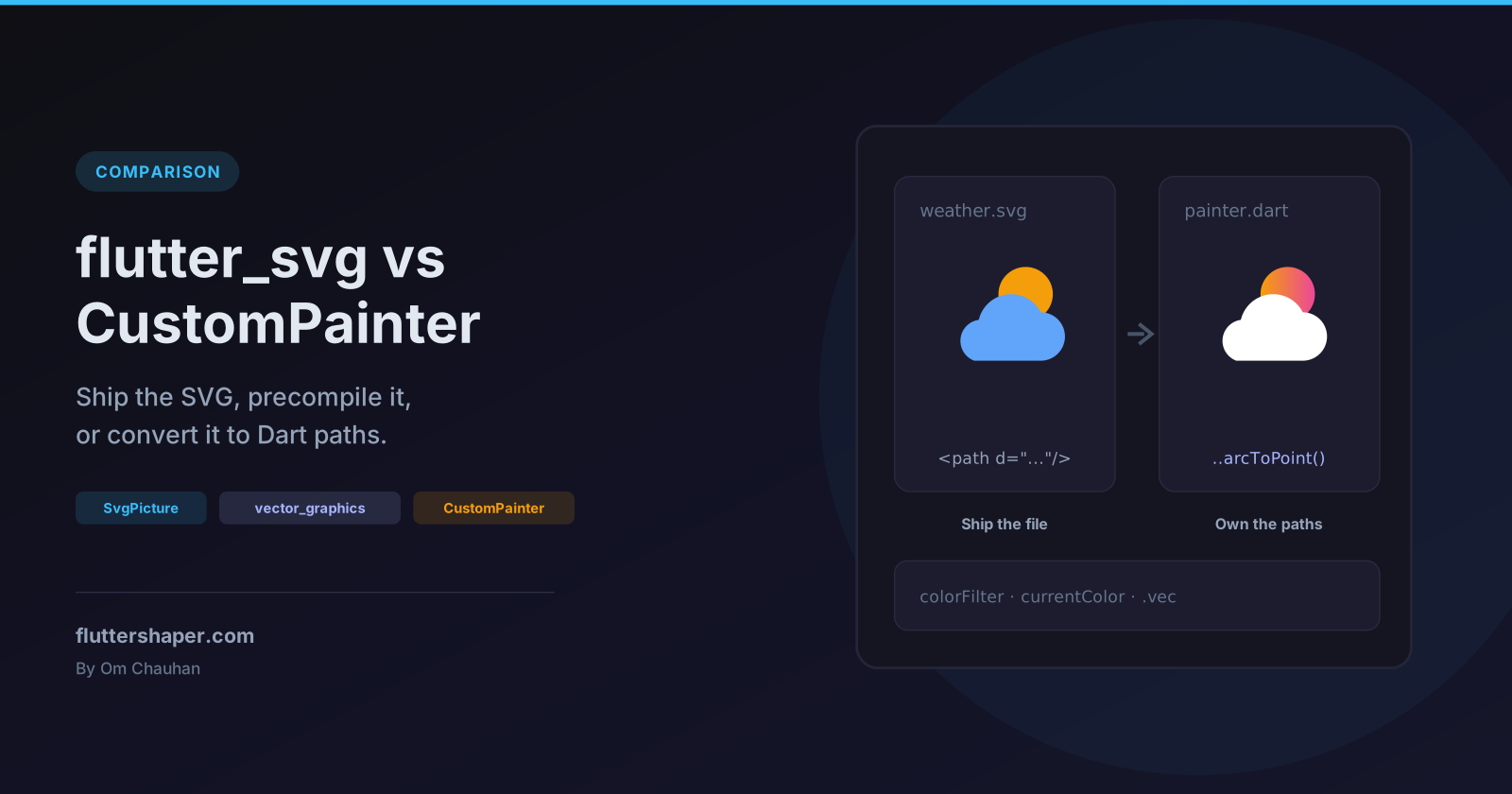
A designer hands you an SVG icon. You can ship the file and draw it with flutter_svg, precompile it into a binary format with vector_graphics, or translate its paths into a CustomPainter and ship no file at all.
All three produce the same pixels for a simple icon. The differences show up when you want to recolour one part, animate one part, react to taps on one part, or use an SVG feature the parser doesn't support. This article renders one two-part icon every way and shows where each approach wins.

The code was checked with Flutter 3.38.7, flutter_svg 2.3.0, vector_graphics 1.2.3 and vector_graphics_compiler 1.3.0. As of November 2026 the latest releases on pub.dev are flutter_svg 2.3.2, vector_graphics 1.2.6 and vector_graphics_compiler 1.3.4, and they require Flutter 3.41 or newer, so an older SDK resolves to the versions above.
Quick answer
SvgPicture (flutter_svg) |
VectorGraphic (precompiled) |
CustomPainter |
|
|---|---|---|---|
| Ships | The .svg file |
A compiled binary asset | Dart code only |
| SVG parsing at runtime | Yes | No | No |
| Designer can replace the file | Yes | Yes (rebuild) | No, re-convert by hand |
| Tint the whole icon | colorFilter |
colorFilter via SvgPicture |
Any Paint |
| Change one part's colour | currentColor, ColorMapper |
Fixed at build time | Yes |
| Animate one part | No | No | Yes |
| Tap detection per part | No | No | Yes, with Path.contains |
Rule of thumb: keep the SVG when the artwork is owned by a designer and only needs to be shown. Convert it when your code needs to reach inside it.
The icon
Every example uses this 48 x 48 icon: a sun behind a cloud, two shapes with their own fill.
const weatherSvg = '''
<svg xmlns="http://www.w3.org/2000/svg" viewBox="0 0 48 48">
  <circle cx="30" cy="16" r="9" fill="#F59E0B"/>
  <path d="M13 38H35A8 8 0 0 0 35 22A11 11 0 0 0 14.5 24.5A7 7 0 0 0 13 38Z" fill="#60A5FA"/>
</svg>
''';
Option 1: flutter_svg
Add the package with flutter pub add flutter_svg, list the file under flutter: assets: in pubspec.yaml, and draw it:
Column(
  children: [
    // From an asset listed under flutter/assets in pubspec.yaml
    SvgPicture.asset(
      'assets/icons/weather.svg',
      width: 96,
      height: 96,
      semanticsLabel: 'Partly sunny',
    ),
    // From a string, for example one returned by your API
    SvgPicture.string(weatherSvg, width: 96, height: 96),
  ],
);
SvgPicture.network and SvgPicture.file work the same way for other sources.
What happens when it loads
Since version 2, flutter_svg doesn't draw the XML directly. Its loaders call encodeSvg from vector_graphics_compiler to turn the SVG into the vector_graphics binary format, then the vector_graphics runtime draws that. You can see this in the package's loaders.dart. Two details from the source:
- Where parsing runs. In profile and release builds the parse runs on a background isolate through
compute. In debug mode and on the web it runs on the main isolate. - Optimizers are off. The runtime loader passes
enableClippingOptimizer: false,enableMaskingOptimizer: falseandenableOverdrawOptimizer: false. Precompiling (below) turns them on.
Recolouring
The README recommends colorFilter for tinting. The older color parameter is deprecated in favour of it.
SvgPicture.asset(
  'assets/icons/weather.svg',
  width: 96,
  height: 96,
  colorFilter: const ColorFilter.mode(Colors.indigo, BlendMode.srcIn),
);
BlendMode.srcIn replaces the colour of every painted pixel, so a two-tone icon becomes a single-colour silhouette (second tile in the image above). That's ideal for monochrome UI icons and wrong for anything multi-coloured.
To recolour one part, mark it with fill="currentColor" in the SVG and pass an SvgTheme:
SvgPicture.string(
  weatherSvgCurrentColor,
  width: 96,
  height: 96,
  theme: const SvgTheme(currentColor: Color(0xFF64748B)),
);
Only the cloud, which uses currentColor, changes; the sun keeps its orange (third tile). For rule-based swaps across a whole file, flutter_svg also accepts a ColorMapper whose substitute method is called for every colour during parsing, as shown in the README.
Option 2: precompile with vector_graphics
Because the runtime path already converts SVG to the vector_graphics format, you can do that step at build time instead. Flutter's asset transformers run the compiler while the asset is copied into the build:
dependencies:
  vector_graphics: ^1.2.3
dev_dependencies:
  vector_graphics_compiler: ^1.3.0

flutter:
  assets:
    - path: assets/compiled/weather.svg
      transformers:
        - package: vector_graphics_compiler
Load it with VectorGraphic and AssetBytesLoader. The path stays the same even though the bundled file is now binary:
// assets/compiled/weather.svg is compiled at build time by the transformer
const VectorGraphic(
  loader: AssetBytesLoader('assets/compiled/weather.svg'),
  width: 96,
  height: 96,
);
The fourth tile in the image is this widget, rendered in a widget test where flutter test ran the transformer. If you want colorFilter, SvgPicture accepts the same loader:
const SvgPicture(
  AssetBytesLoader('assets/compiled/weather.svg'),
  width: 96,
  height: 96,
  colorFilter: ColorFilter.mode(Colors.indigo, BlendMode.srcIn),
);
You can also compile by hand with dart run vector_graphics_compiler -i assets/foo.svg -o assets/foo.svg.vec, as the flutter_svg README shows.
What precompiling changes:
- No XML parsing in the app. The work moves to your build.
- The optimizers run. The compiler's command-line flags
--optimize-masks,--optimize-clipsand--optimize-overdrawdefault to on. currentColoris resolved at build time.VectorGraphichas nothemeparameter; the compiler has a--current-coloroption that defaults to black.SvgThemecan't change a precompiled file.- The file isn't always smaller. For this two-shape icon the compiled asset is 431 bytes against 211 bytes for the SVG.
What flutter_svg can't render
The vector_graphics_compiler README lists filters and some text processing attributes as unsupported. The parser handles a fixed set of elements (svg, g, use, symbol, mask, pattern, gradients, clipPath, image, text, tspan and the basic shapes, per parser.dart) and skips the rest. Unit tests against encodeSvg with warningsAsErrors: true confirm what that means in practice:
| SVG feature | Result |
|---|---|
<filter> (blur, drop shadow) |
Skipped: unhandled element <filter/> |
<style> with CSS classes |
Skipped; a <rect class="a"> falls back to black fill |
Inline style="fill:#ff0000" |
Works |
<animate> (SMIL animation) |
Skipped |
<foreignObject> |
Skipped |
<image> with an external href |
Skipped; only embedded data: PNG, JPEG, WebP, GIF and BMP images are drawn (an embedded SVG isn't) |
In debug builds each skipped element is reported once in the console as unhandled element <name/>, but the icon still renders, just without those parts. Profile and release builds report nothing. The flutter_svg README suggests exporting from Illustrator with "Presentation Attributes" instead of inline CSS for this reason.
The README also gives a compiler command for checking compatibility, but it only reports errors that are thrown, and skipped elements aren't errors: run against an SVG with a <filter> and a <style> block, it exits successfully. To vet files strictly, call encodeSvg from package:vector_graphics_compiler in a unit test with warningsAsErrors: true (and the three optimizers off, as the runtime loader does). It then throws an error that names the first unsupported element.
Option 3: convert it to a CustomPainter
SVG path commands map almost one to one onto Flutter's Path API. Note the arc's sweep flag: 0 in SVG becomes clockwise: false.
class WeatherIconPainter extends CustomPainter {
  WeatherIconPainter({
    this.sunColor = const Color(0xFFF59E0B),
    this.cloudColor = const Color(0xFF60A5FA),
    this.sunRise,
  }) : super(repaint: sunRise);

  final Color sunColor;
  final Color cloudColor;

  /// 0 = sun hidden behind the cloud, 1 = sun fully up.
  final Animation<double>? sunRise;

  // Both paths use the SVG's 48 x 48 viewBox coordinates.
  static Path sun({double dy = 0}) =>
      Path()..addOval(Rect.fromCircle(center: Offset(30, 16 + dy), radius: 9));

  static Path cloud() => Path()
    ..moveTo(13, 38) // M13 38
    ..lineTo(35, 38) // H35
    ..arcToPoint(
      const Offset(35, 22), // A8 8 0 0 0 35 22
      radius: const Radius.circular(8),
      clockwise: false,
    )
    ..arcToPoint(
      const Offset(14.5, 24.5), // A11 11 0 0 0 14.5 24.5
      radius: const Radius.circular(11),
      clockwise: false,
    )
    ..arcToPoint(
      const Offset(13, 38), // A7 7 0 0 0 13 38
      radius: const Radius.circular(7),
      clockwise: false,
    )
    ..close(); // Z

  @override
  void paint(Canvas canvas, Size size) {
    canvas.scale(size.width / 48, size.height / 48);
    final dy = 12 * (1 - (sunRise?.value ?? 1.0));
    canvas.drawPath(sun(dy: dy), Paint()..color = sunColor);
    canvas.drawPath(cloud(), Paint()..color = cloudColor);
  }

  @override
  bool shouldRepaint(WeatherIconPainter oldDelegate) =>
      oldDelegate.sunColor != sunColor ||
      oldDelegate.cloudColor != cloudColor ||
      oldDelegate.sunRise != sunRise;
}
canvas.scale maps the 48-unit viewBox onto whatever size the widget gets, which is what SvgPicture does with BoxFit.contain for a square box. Use it with CustomPaint(size: const Size(96, 96), painter: WeatherIconPainter()). The fifth tile in the image is this painter, and it matches the SVG. For a full list of command mappings, see converting SVG path data to a Flutter Path by hand.
When the conversion pays off
Animating one part. The sunRise animation is passed to super(repaint:), so the painter repaints on every tick without rebuilding any widgets:
class _RisingSunIconState extends State<RisingSunIcon>
    with SingleTickerProviderStateMixin {
  late final AnimationController _controller = AnimationController(
    vsync: this,
    duration: const Duration(milliseconds: 900),
  )..forward();
  late final CurvedAnimation _sunRise = CurvedAnimation(
    parent: _controller,
    curve: Curves.easeOutBack,
  );

  @override
  void dispose() {
    _sunRise.dispose();
    _controller.dispose();
    super.dispose();
  }

  @override
  Widget build(BuildContext context) {
    return CustomPaint(
      size: const Size(96, 96),
      painter: WeatherIconPainter(sunRise: _sunRise),
    );
  }
}
SvgPicture draws the file as one picture, so there's no handle on the sun to move.
Tapping one part. Because the shapes are Path objects in your code, Path.contains tells you which one was hit:
enum WeatherPart { sun, cloud }

WeatherPart? partAt(Offset localPosition, Size size) {
  final p = Offset(
    localPosition.dx * 48 / size.width,
    localPosition.dy * 48 / size.height,
  );
  // Check the top-most shape first: the cloud is painted over the sun.
  if (WeatherIconPainter.cloud().contains(p)) return WeatherPart.cloud;
  if (WeatherIconPainter.sun().contains(p)) return WeatherPart.sun;
  return null;
}
Call it from a GestureDetector's onTapUp with details.localPosition and the size you paint at. A widget test confirms that taps on the visible sun, on the cloud and on the empty corner return sun, cloud and null. Custom shape hit testing in Flutter covers this pattern in more depth.
Styling each part differently. A gradient on the sun and an outline on the cloud is a few lines of Paint (last tile in the image):
class OutlinedWeatherPainter extends CustomPainter {
  @override
  void paint(Canvas canvas, Size size) {
    canvas.scale(size.width / 48, size.height / 48);
    final sunPaint = Paint()
      ..shader = const RadialGradient(
        colors: [Color(0xFFFDE68A), Color(0xFFF97316)],
      ).createShader(Rect.fromCircle(center: const Offset(30, 16), radius: 9));
    canvas.drawPath(WeatherIconPainter.sun(), sunPaint);
    canvas.drawPath(WeatherIconPainter.cloud(), Paint()..color = Colors.white);
    canvas.drawPath(
      WeatherIconPainter.cloud(),
      Paint()
        ..style = PaintingStyle.stroke
        ..strokeWidth = 1.5
        ..color = const Color(0xFF334155),
    );
  }

  @override
  bool shouldRepaint(OutlinedWeatherPainter oldDelegate) => false;
}
No parsing and no asset. The paths are compiled into your app like any other Dart code, and there's no file to load or keep in sync.
What you give up
- Design hand-off. When the designer updates the SVG, someone has to redo the conversion. With
SvgPictureyou replace the file. - Scale. Converting a two-shape icon is quick. An illustration with hundreds of paths, gradients, masks and clip paths becomes a long, hard-to-review painter.
- Accessibility for free.
SvgPicturetakes asemanticsLabel. ACustomPaintneeds aSemanticswrapper or asemanticsBuilderon the painter.
Which one should you use?
| Situation | Use |
|---|---|
| Static icons and illustrations from a designer | SvgPicture |
| Many static SVGs, or large ones, where you want parsing out of the app | VectorGraphic with the asset transformer |
| Monochrome icons that follow the theme colour | SvgPicture + colorFilter |
| One part changes colour at runtime | SvgPicture + currentColor and SvgTheme |
| A part moves, morphs or reacts to taps | CustomPainter |
| The SVG relies on filters, CSS classes or SMIL animation | Rework the SVG, or redraw it in a CustomPainter |
The approaches mix well: you can keep icons as SVG assets and convert only the few that need to animate or respond to touch.
Converting without the arithmetic
The slow part of option 3 is turning d="..." strings into Path calls. If you'd rather not do it by hand, the Flutter Shape Builder SVG importer takes pasted SVG markup or an uploaded file and exports CustomPainter code that you can then extend with animations or hit testing as shown above.
Related articles
Explore Our Projects
Beyond the shape tools — two more things we build and use every day. Free to try, no signup.
Keyboard Arena
Typing practice that plays like a game
Real-time WPM tests, mechanical switch audio, A-Z finger drills and 40+ structured lessons. Race a ghost of your best run instead of grinding random words.
- ✓ Live WPM & Accuracy
- ✓ Mechanical Switch Audio
- ✓ 40+ Guided Lessons
Flutter Log Explorer
Finally, Flutter logs you can read
Zero-config, real-time log capture from the Debug Adapter and Dart VM Service, with smart classification, filters and deduplication — all inside VS Code.
- ✓ Zero-Config Capture
- ✓ Smart Filters & Search
- ✓ Noise-Free Deduplication
Ready to Design Your Own Shapes?
Open the editor and start creating professional Flutter CustomPainter code visually.
Open the Editor