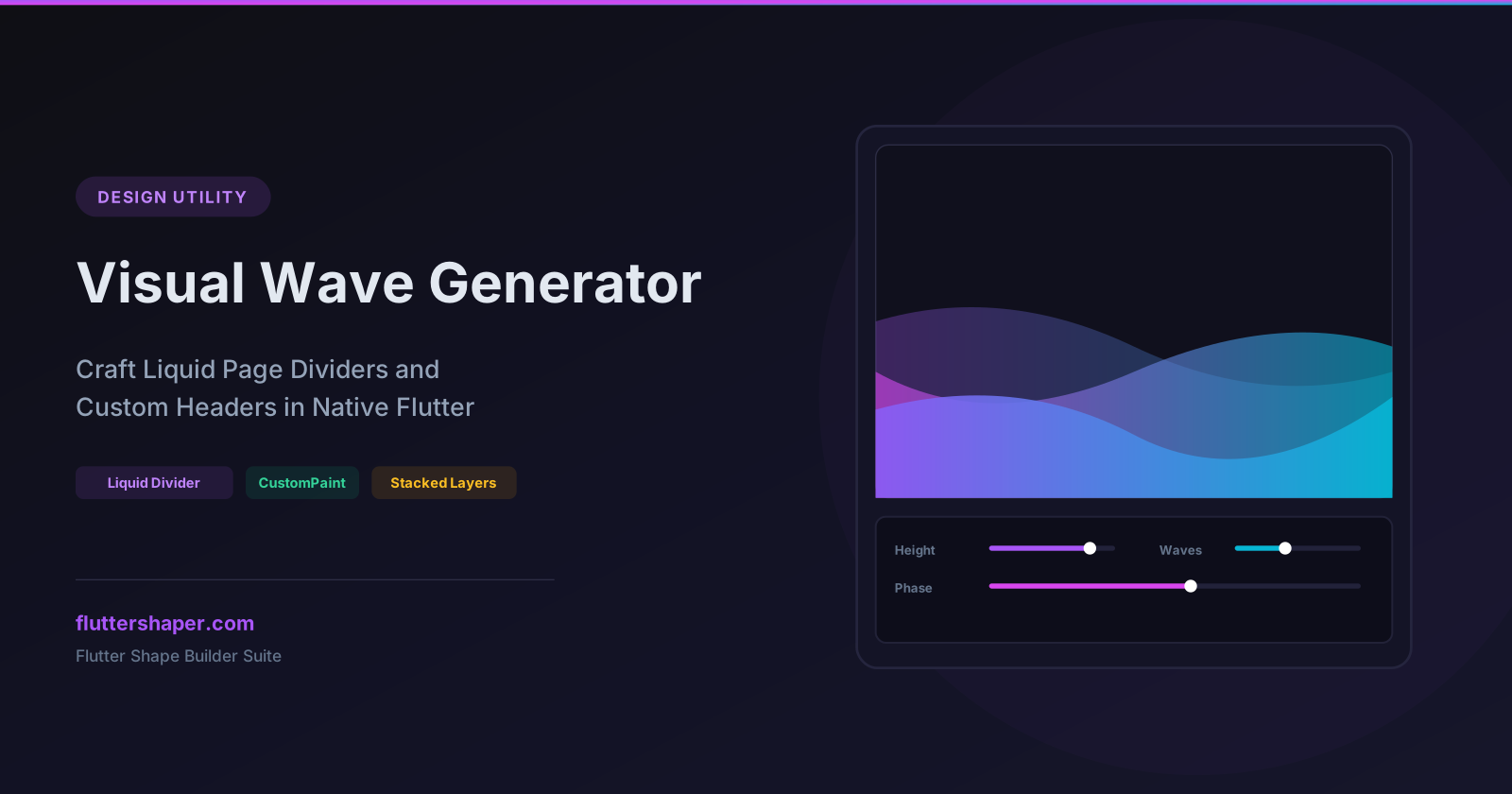
Wave Generator: Crafting Smooth Liquid Transitions and Custom Headers in Flutter
A great way to separate different sections of a screen is to replace straight lines with smooth, organic wave transitions. Whether it's a banner header at the top of a profile page or a liquid transition separating cards on a landing page, waves make your app feel dynamic, modern, and alive.
Writing wave code from scratch is notoriously tricky. It requires plotting a series of bezier anchor points across the width of the screen or using sine/cosine equations to calculate coordinates on the fly.
The Wave Generator tool does the calculations for you. Adjust the waves visually, layer multiple colors, and copy-paste ready-to-run Dart code.
Let's look at how waves are built and how to use the generator to create layered, modern layouts.
The Concepts Behind Wave Curves
To design waves, you'll tweak a few essential settings:
- Amplitude (Wave Height): The distance between the crest (peak) and the trough (valley) of the wave. A high amplitude creates dramatic, steep waves; a low amplitude creates a gentle, near-flat curve.
- Frequency (Wave Length): How many complete waves fit across the width of the screen. A frequency of
1creates a single smooth roll, while a frequency of3creates a series of ripples. - Phase (Offset): Shifting the wave horizontally. By changing the phase, you slide the peaks and valleys left or right. This is crucial when stacking multiple waves, as offsetting them makes them look independent.
- Alignment: Determines which edge of the container the wave runs along (Top, Bottom, Left, or Right). For example, a "Top" wave fills the top half of the screen and drops down in a curve, making it perfect for custom app bar backgrounds.
Implementing a Custom Wave in Flutter
All wave designs from the generator compile into a standard CustomPainter class.
Here is the Dart code for a single smooth wave header at the top of a screen:
import 'dart:math' as math;
import 'package:flutter/material.dart';

class WaveHeaderPainter extends CustomPainter {
  @override
  void paint(Canvas canvas, Size size) {
    final paint = Paint()
      ..style = PaintingStyle.fill
      ..shader = const LinearGradient(
        begin: Alignment.topCenter,
        end: Alignment.bottomCenter,
        colors: [Color(0xFF8B5CF6), Color(0xFF6366F1)],
      ).createShader(Rect.fromLTWH(0, 0, size.width, size.height));

    final path = Path();
    final w = size.width;
    final h = size.height;

    // Start drawing
    path.moveTo(0, 0);
    path.lineTo(w, 0);
    path.lineTo(w, h * 0.7); // Drop down the right side

    // Draw the wave curve across the bottom edge using quadratic beziers
    path.quadraticBezierTo(
      w * 0.5, // Control point X (middle of the screen)
      h * 1.0, // Control point Y (deepest crest)
      0,       // End point X
      h * 0.7, // End point Y
    );

    path.close();
    canvas.drawPath(path, paint);
  }

  @override
  bool shouldRepaint(covariant CustomPainter oldDelegate) => false;
}
To display this as a header, wrap it in a CustomPaint widget and set the size:
CustomPaint(
  size: Size(double.infinity, 250), // Takes full width, 250px height
  painter: WaveHeaderPainter(),
)
Pro Tip: Stacking Multiple Wave Layers
Single waves look clean, but stacking multiple wave layers with different opacities, heights, and phases creates a beautiful "liquid glass" look.
In our Wave Generator, you can design stacked wave layers. In your code, you render them inside a Stack widget, placing the background waves behind the foreground ones.
Here is a typical layout structure:
Stack(
  children: [
    // Layer 1: Background Wave (Lighter opacity, shifted phase)
    Positioned.fill(
      child: Opacity(
        opacity: 0.4,
        child: CustomPaint(
          painter: WaveBackPainter(),
        ),
      ),
    ),
    // Layer 2: Middle Wave
    Positioned.fill(
      child: Opacity(
        opacity: 0.6,
        child: CustomPaint(
          painter: WaveMidPainter(),
        ),
      ),
    ),
    // Layer 3: Foreground Main Wave
    Positioned.fill(
      child: CustomPaint(
        painter: WaveFrontPainter(),
      ),
    ),
    // Your screen content goes here
    const Center(
      child: Text(
        'Welcome Back',
        style: TextStyle(color: Colors.white, fontSize: 32, fontWeight: FontWeight.bold),
      ),
    ),
  ],
)
Animate Your Waves
Because waves are drawn using pure code, you can easily animate them by hooking up your CustomPainter to an AnimationController and modifying the phase offset over time. This makes the wave appear to flow continuously like water.
Use the Wave Generator to export your static wave path, and use a simple AnimatedBuilder to add horizontal translation.
Design Custom Wave Components Now
Ditch static background images. Make your layouts dynamic, responsive, and vector-perfect at any size.
Related articles
Explore Our Projects
Beyond the shape tools — two more things we build and use every day. Free to try, no signup.
Keyboard Arena
Typing practice that plays like a game
Real-time WPM tests, mechanical switch audio, A-Z finger drills and 40+ structured lessons. Race a ghost of your best run instead of grinding random words.
- ✓ Live WPM & Accuracy
- ✓ Mechanical Switch Audio
- ✓ 40+ Guided Lessons
Flutter Log Explorer
Finally, Flutter logs you can read
Zero-config, real-time log capture from the Debug Adapter and Dart VM Service, with smart classification, filters and deduplication — all inside VS Code.
- ✓ Zero-Config Capture
- ✓ Smart Filters & Search
- ✓ Noise-Free Deduplication
Ready to Design Your Own Shapes?
Open the editor and start creating professional Flutter CustomPainter code visually.
Open the Editor