Flutter Bezier Curves Guide: quadraticBezierTo, cubicTo & Charts (with Code)
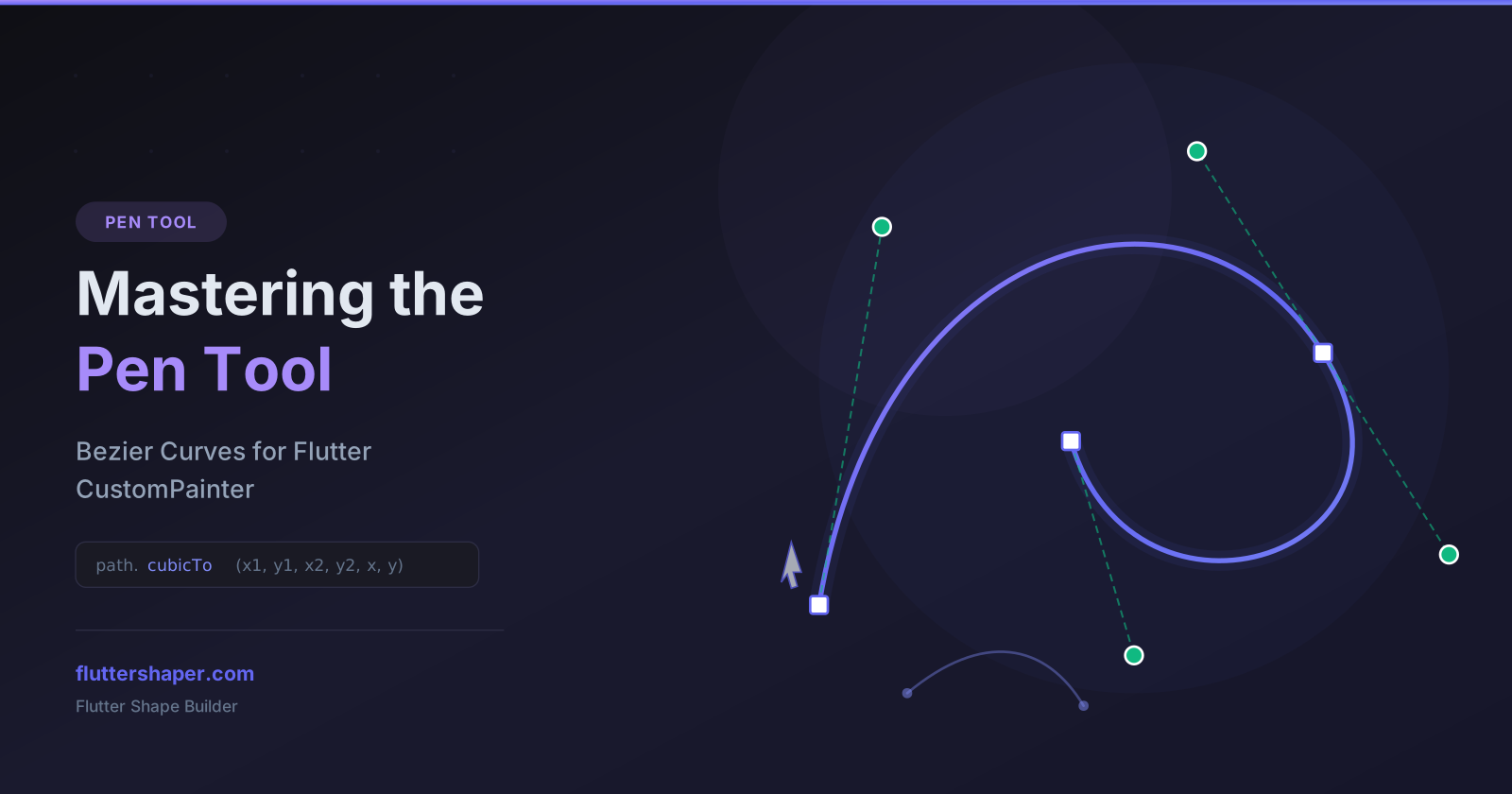
The Pen Tool is the most powerful drawing instrument in Flutter Shape Builder, the ultimate flutter shape maker. It lets you create any flutter shape imaginable — from simple straight-line paths to fluid organic curves — all while generating clean, production-ready Path commands for Flutter's CustomPainter to define your flutter custom painter shape.
If you have ever used the Pen Tool in Figma, Adobe Illustrator, or Inkscape, you will feel right at home. If not, this guide covers everything you need to know.
How the Pen Tool works
Activate the Pen Tool with the keyboard shortcut Ctrl+P or by selecting it from the toolbar. Then click on the canvas to place anchor points. Each click adds a new vertex to your path:
- Click to place a sharp corner point (linear segment)
- Click and drag to create a smooth curve with control handles
- Press Enter or click the first point to close the path
Understanding bezier curves
Flutter Shape Builder supports two types of bezier curves, matching the SVG and Flutter Path APIs:
Cubic bezier curves
Cubic bezier curves use two control points to define the shape of the curve between two anchor points. In Flutter, this maps to the path.cubicTo() method. Cubic curves offer the most control and can create S-curves, complex organic shapes, and smooth transitions.
// Generated Flutter code for a cubic bezier
path.cubicTo(
  100, 50,   // first control point
  200, 150,  // second control point
  300, 100,  // end point
);
Quadratic bezier curves
Quadratic bezier curves use one control point and are simpler than cubic curves. They map to path.quadraticBezierTo() in Flutter. They are ideal for gentle arcs, parabolic shapes, and simpler curved segments.
// Generated Flutter code for a quadratic bezier
path.quadraticBezierTo(
  150, 50,   // control point
  300, 100,  // end point
);
quadraticBezierTo vs cubicTo Quick Reference
Flutter's Path provides two fundamental methods for drawing curves. Here is a direct comparison to help you choose the right one for your UI or chart:
| Feature | path.quadraticBezierTo(x1, y1, x2, y2) |
path.cubicTo(x1, y1, x2, y2, x3, y3) |
|---|---|---|
| Control Points | 1 control point (x1, y1) |
2 control points (x1, y1 and x2, y2) |
| Destination | End point (x2, y2) |
End point (x3, y3) |
| Mathematical Degree | Degree 2 (Parabolic curve) | Degree 3 (Cubic polynomial) |
| Best For | Gentle wave peaks, rounded card edges, parabolic arcs | S-curves, organic fluid blobs, complex typography, custom line charts |
| Performance | Faster to compute | Slightly more arithmetic, but maximum visual flexibility |
How to Draw Smooth Bezier Charts & Line Graphs in Flutter
A very common use case for quadraticBezierTo and cubicTo is building smooth, curved line charts and trend graphs without relying on heavy third-party charting libraries.
To achieve a natural curved chart through a list of data points $(P_0, P_1, \dots, P_n)$, you can use midpoint quadratic interpolation:
class SmoothBezierChartPainter extends CustomPainter {
  final List<Offset> points;
  final Color lineColor;

  SmoothBezierChartPainter({required this.points, required this.lineColor});

  @override
  void paint(Canvas canvas, Size size) {
    if (points.length < 2) return;

    final linePaint = Paint()
      ..color = lineColor
      ..style = PaintingStyle.stroke
      ..strokeWidth = 3.0
      ..strokeCap = StrokeCap.round;

    final path = Path();
    path.moveTo(points[0].dx, points[0].dy);

    for (int i = 0; i < points.length - 1; i++) {
      final p0 = points[i];
      final p1 = points[i + 1];

      // Calculate the midpoint between the current point and next point
      final midX = (p0.dx + p1.dx) / 2;
      final midY = (p0.dy + p1.dy) / 2;

      // Draw quadratic curve using current point as control point and midpoint as endpoint
      path.quadraticBezierTo(p0.dx, p0.dy, midX, midY);
    }

    // Connect to the final point
    final last = points.last;
    path.lineTo(last.dx, last.dy);

    canvas.drawPath(path, linePaint);
  }

  @override
  bool shouldRepaint(covariant SmoothBezierChartPainter oldDelegate) =>
      oldDelegate.points != points;
}
This simple pattern produces the modern, buttery-smooth curves seen in popular financial dashboards and fitness trackers.
Frequently Asked Questions
What is the difference between quadraticBezierTo and cubicTo in Flutter?
quadraticBezierTo takes 1 control point and 1 end point (4 arguments total), creating a parabolic curve. cubicTo takes 2 control points and 1 end point (6 arguments total), allowing the curve to bend in multiple directions like an "S" shape.
How do I close a curved Path in Flutter CustomPainter?
Call path.close() after your last curve command. This automatically connects a straight line from the current endpoint back to the origin coordinates set by path.moveTo().
Can I visually design Bezier curves and copy the Flutter code?
Yes! Use the free Flutter Shape Builder Pen Tool to click and drag anchor points and handles interactively. It generates production-ready Path.cubicTo and Path.quadraticBezierTo Dart code in real-time.
Anchor point editing
Once your flutter path shape is drawn, switch to the Select tool (V) to enter editing mode. Flutter Shape Builder provides a comprehensive set of anchor point manipulation features for your flutter custom shape:
- Drag anchor points — move any vertex to a new position
- Drag control handles — the green control points let you sculpt the curve shape in real time
- Double-click an anchor — toggle between sharp corner and smooth curve modes
- Click on a segment — insert a new anchor point at that location using De Casteljau's algorithm
- Delete key on a selected anchor — remove the point from the path
SVG path commands under the hood
Flutter Shape Builder uses standard SVG path notation internally, which it then converts to Flutter Dart code. The supported commands are:
| Command | Description | Flutter equivalent |
|---|---|---|
M x y |
Move to (starting point) | path.moveTo(x, y) |
L x y |
Line to (straight segment) | path.lineTo(x, y) |
C x1 y1 x2 y2 x y |
Cubic bezier curve | path.cubicTo(x1, y1, x2, y2, x, y) |
Q x1 y1 x y |
Quadratic bezier curve | path.quadraticBezierTo(x1, y1, x, y) |
Z |
Close path | path.close() |
All coordinates are absolute, which ensures the generated Flutter code is predictable and easy to modify manually.
Tips for creating smooth curves
- Use fewer points — fewer anchor points with well-placed control handles produce smoother results than many points with short segments
- Keep handles symmetric — when both control handles are roughly equal length and opposite angle, the curve flows smoothly through the anchor
- Subdivide when needed — click on an existing segment to split it with a new point, giving you more local control without disrupting the rest of the curve
- Toggle curve mode — double-click any sharp corner to convert it to a smooth curve, or vice versa
From pen strokes to production Flutter code
Every path you create with the Pen Tool is instantly reflected in the code preview panel. The generated Dart code uses Flutter's standard Path class with moveTo, lineTo, cubicTo, and quadraticBezierTo methods — no external packages required.
final path = Path();
path.moveTo(50.0, 100.0);
path.cubicTo(80.0, 30.0, 180.0, 30.0, 210.0, 100.0);
path.cubicTo(240.0, 170.0, 140.0, 200.0, 50.0, 100.0);
path.close();

canvas.drawPath(path, paint);
Try the Pen Tool now
Open the editor, press Ctrl+P, and start drawing bezier curves. Your Flutter code updates in real time.
Related articles
Explore Our Projects
Beyond the shape tools — two more things we build and use every day. Free to try, no signup.
Keyboard Arena
Typing practice that plays like a game
Real-time WPM tests, mechanical switch audio, A-Z finger drills and 40+ structured lessons. Race a ghost of your best run instead of grinding random words.
- ✓ Live WPM & Accuracy
- ✓ Mechanical Switch Audio
- ✓ 40+ Guided Lessons
Flutter Log Explorer
Finally, Flutter logs you can read
Zero-config, real-time log capture from the Debug Adapter and Dart VM Service, with smart classification, filters and deduplication — all inside VS Code.
- ✓ Zero-Config Capture
- ✓ Smart Filters & Search
- ✓ Noise-Free Deduplication
Ready to Design Your Own Shapes?
Open the editor and start creating professional Flutter CustomPainter code visually.
Open the Editor