Visual Gradient Builder: Master Linear, Radial & Sweep Gradients in Flutter
Adding beautiful color transitions is one of the easiest ways to elevate your Flutter app's visual style. Instead of plain solid background colors, gradients add depth, light, and a modern feel to your buttons, cards, headers, and screens.
However, writing gradients in Dart can feel like guesswork. You have to specify exact fractional offsets (Alignment(-1.0, -1.0)), add multiple hex color codes, position stops precisely, and select tiling modes—all without seeing the result until you rebuild the app.
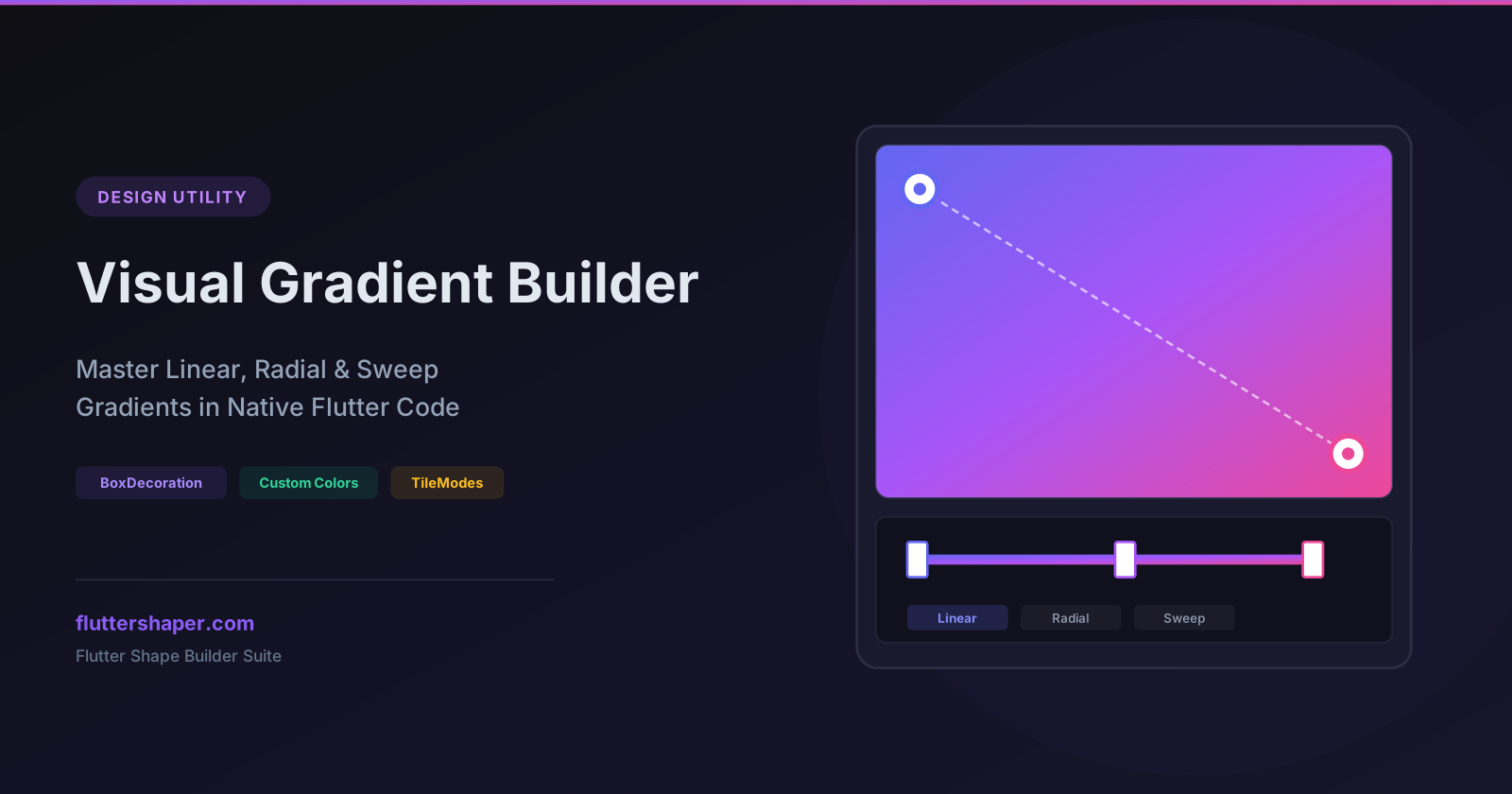
The Visual Gradient Builder solves this. It lets you visually design gradients, adjust points in real-time, and copy clean, ready-to-run Flutter code instantly.
Let's dive deep into the three types of gradients supported in Flutter, how they work under the hood, and how to use the builder to master them.
1. Linear Gradients (LinearGradient)
Linear gradients are the most common gradient type. Colors blend along a straight line from a starting point to an ending point.
In Flutter, a LinearGradient is defined by:
beginandend: These determine the direction and angle of the gradient. They use theAlignmentclass (e.g.,Alignment.topLefttoAlignment.bottomRight).colors: A list of colors that make up the gradient.stops: Optional values between0.0and1.0that specify where each color should sit along the line. If omitted, colors are spaced evenly.
Generating Linear Gradient Code
With our Visual Gradient Builder, you can simply drag the start and end handles on the canvas to set the direction and angle. Add color stops by clicking anywhere on the color bar slider.
Here is the code output from a typical linear design:
const BoxDecoration(
  gradient: LinearGradient(
    begin: Alignment.topLeft,
    end: Alignment.bottomRight,
    colors: [
      Color(0xFF6366F1), // Indigo
      Color(0xFFEC4899), // Pink
    ],
    stops: [0.0, 1.0],
  ),
)
2. Radial Gradients (RadialGradient)
Radial gradients radiate outwards from a single center point. They create circular or elliptical patterns that are perfect for spotlights, glowing buttons, or ambient background highlights.
Key properties of RadialGradient include:
center: The starting point of the radial pattern. The default isAlignment.center.radius: How far the gradient extends before it finishes. A radius of0.5fills half the width of the container.focalandfocalRadius: Allows you to offset the light source (the "hotspot" or highlight) from the actual geometric center, creating realistic 3D lighting effects.
Visualizing Radial Highlights
In the Gradient Builder, you can drag the center handle to change the position, resize the circle to change the radius, and shift the focal point handle.
Here is what the exported code looks like:
const BoxDecoration(
  gradient: RadialGradient(
    center: Alignment(0.0, -0.2), // Shifted slightly up
    radius: 0.8,
    focal: Alignment(-0.1, -0.3), // Focal offset for highlights
    focalRadius: 0.1,
    colors: [
      Color(0xFFFBBF24), // Yellow glow
      Color(0xFFD97706), // Warm orange background
    ],
    stops: [0.0, 1.0],
  ),
)
3. Sweep Gradients (SweepGradient)
Sweep gradients (sometimes called angular or conical gradients) sweep colors around a central point, like the hands of a clock or a color wheel. They are commonly used for progress rings, dashboard gauges, or radar animations.
Important properties of SweepGradient include:
center: The origin point of the sweep.startAngleandendAngle: Set in radians (where0.0is horizontal right,piis 180 degrees, and2 * piis 360 degrees). They define where the sweep starts and ends.
Sweeping the Colors
Using the builder, you can rotate the sweep angle handles directly on the canvas to define start and end limits.
import 'dart:math' as math;

const BoxDecoration(
  gradient: SweepGradient(
    center: Alignment.center,
    startAngle: 0.0,
    endAngle: math.pi * 2, // Complete 360 degree circle
    colors: [
      Color(0xFF3B82F6),
      Color(0xFF10B981),
      Color(0xFF6366F1),
      Color(0xFF3B82F6), // Matches start color for a smooth seam
    ],
    stops: [0.0, 0.33, 0.66, 1.0],
  ),
)
Understanding Tile Modes (TileMode)
What happens when the gradient is smaller than the container it's rendering inside? That is controlled by the tileMode parameter:
TileMode.clamp(Default): The start and end colors stretch out to fill the remaining area.TileMode.repeated: The gradient pattern repeats over and over.TileMode.mirror: The gradient repeats, but mirrors the pattern (going back and forth), creating smooth transitions.
You can toggle these modes inside the Visual Gradient Builder's control panel and observe the repeating patterns instantly.
Designing Best Practices
- Use Harmonious Colors: Stick to complementary colors (like purple and blue) or analogous colors (colors next to each other on the color wheel).
- Match Start and End in Sweeps: If your sweep goes a full 360 degrees, make sure the first and last colors in the list are identical. This prevents a harsh line where the sweep joins.
- Use Soft Colors for Backdrops: High-contrast gradients look great on buttons but can make text unreadable when used as page backgrounds. For screens, use very subtle color differences.
Build Your Next Gradient
Ready to stop guessing hex codes and alignment offsets? Open the builder, create your design, and drop it straight into your code.
Related articles
Explore Our Projects
Beyond the shape tools — two more things we build and use every day. Free to try, no signup.
Keyboard Arena
Typing practice that plays like a game
Real-time WPM tests, mechanical switch audio, A-Z finger drills and 40+ structured lessons. Race a ghost of your best run instead of grinding random words.
- ✓ Live WPM & Accuracy
- ✓ Mechanical Switch Audio
- ✓ 40+ Guided Lessons
Flutter Log Explorer
Finally, Flutter logs you can read
Zero-config, real-time log capture from the Debug Adapter and Dart VM Service, with smart classification, filters and deduplication — all inside VS Code.
- ✓ Zero-Config Capture
- ✓ Smart Filters & Search
- ✓ Noise-Free Deduplication
Ready to Design Your Own Shapes?
Open the editor and start creating professional Flutter CustomPainter code visually.
Open the Editor