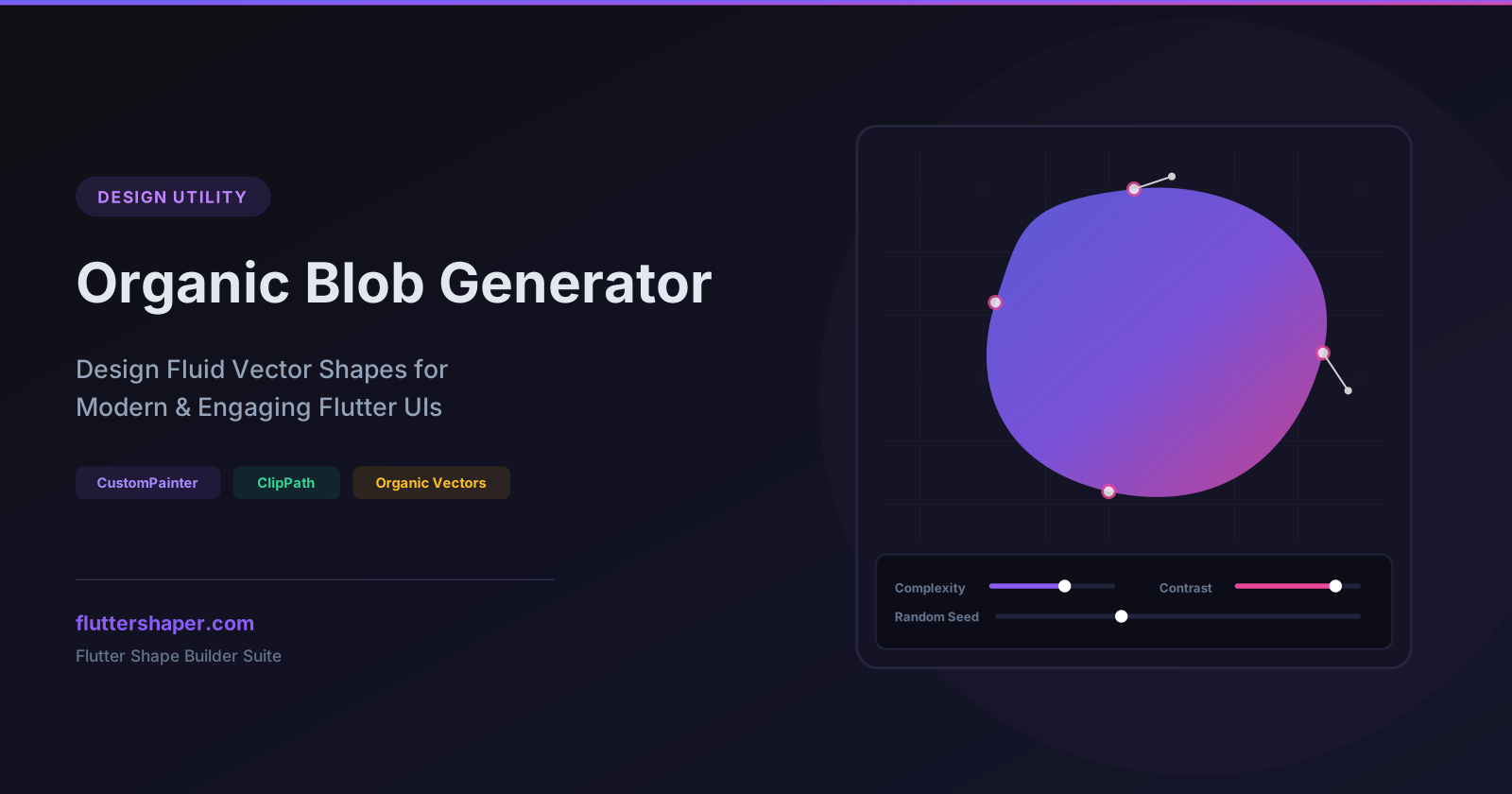
Organic Blob Generator: Design Fluid Vector Shapes for Modern Flutter UIs
Modern app interfaces have moved away from strict, blocky grids. Today's most visually appealing designs use soft, organic curves and flowing shapes. We call these fluid shapes blobs.
Blobs are irregular, smooth vector outlines that lack sharp corners. They mimic natural structures like water droplets, bubbles, or clouds. Developers use them behind profile pictures, as decorative background highlights, or to add interest to otherwise plain landing page screens.
However, writing the code to generate a smooth, randomized blob in Flutter using standard Path segments requires complex trigonometric math (using sines, cosines, and bezier curves).
The Organic Blob Generator handles the math for you. Tweak sliders to get the perfect shape and copy-paste ready-to-run Dart code. Let's explore how blobs work in Flutter and how to use them.
The Math Behind a Blob
A blob is generated by placing a set of control points around a circular path. Instead of keeping all points at a fixed radius (which would create a circle), we shift them in or out.
The controls in the Blob Generator represent these shifts:
- Seed: A unique ID for the randomizer. Changing the seed creates a completely new shape.
- Complexity: Determines the number of control points. More points mean more waves and details along the outline. Low complexity makes the blob look like a smooth pebble, while high complexity makes it look wavy or star-like.
- Contrast / Growth: Sets how far points can deviate from the center circle. High growth leads to deep indents and long extensions, while low growth keeps the shape close to a circle.
To draw the blob, the generator links these shifted points using cubic bezier curves. This ensures that even with extreme point offsets, the perimeter stays perfectly smooth without sharp folds or angles.
Method 1: Drawing Blobs with CustomPainter
If you want to render a blob as a standalone graphic element (like a decorative background shape or a custom layout element), you should use a CustomPainter.
Below is the code output from the generator for a smooth, three-point organic blob:
import 'package:flutter/material.dart';

class OrganicBlobPainter extends CustomPainter {
  @override
  void paint(Canvas canvas, Size size) {
    final paint = Paint()
      ..style = PaintingStyle.fill
      ..shader = const LinearGradient(
        colors: [Color(0xFF8B5CF6), Color(0xFFEC4899)],
      ).createShader(Rect.fromLTWH(0, 0, size.width, size.height));

    final path = Path();
    final w = size.width;
    final h = size.height;

    // Drawing the smooth path using cubic beziers
    path.moveTo(w * 0.25, h * 0.50);
    path.cubicTo(w * 0.20, h * 0.25, w * 0.45, h * 0.15, w * 0.70, h * 0.20);
    path.cubicTo(w * 0.95, h * 0.25, w * 0.85, h * 0.65, w * 0.75, h * 0.80);
    path.cubicTo(w * 0.65, h * 0.95, w * 0.30, h * 0.75, w * 0.25, h * 0.50);
    path.close();

    canvas.drawPath(path, paint);
  }

  @override
  bool shouldRepaint(covariant CustomPainter oldDelegate) => false;
}
To display this in your widget tree, wrap it inside a CustomPaint widget:
CustomPaint(
  size: const Size(300, 300),
  painter: OrganicBlobPainter(),
)
Method 2: Clipping Widgets with ClipPath
What if you want to display an image inside a blob shape, or clip a complex list widget into a liquid backdrop? You can do this using Flutter's ClipPath widget combined with a CustomClipper.
All you need to do is paste the path logic from the generator inside a custom class that extends CustomClipper<Path>.
Here is a complete example of clipping an avatar image:
class BlobClipper extends CustomClipper<Path> {
  @override
  Path getClip(Size size) {
    final path = Path();
    final w = size.width;
    final h = size.height;

    path.moveTo(w * 0.25, h * 0.50);
    path.cubicTo(w * 0.20, h * 0.25, w * 0.45, h * 0.15, w * 0.70, h * 0.20);
    path.cubicTo(w * 0.95, h * 0.25, w * 0.85, h * 0.65, w * 0.75, h * 0.80);
    path.cubicTo(w * 0.65, h * 0.95, w * 0.30, h * 0.75, w * 0.25, h * 0.50);
    path.close();

    return path;
  }

  @override
  bool shouldReclip(covariant CustomClipper<Path> oldClipper) => false;
}

// Usage in your Widget Tree:
ClipPath(
  clipper: BlobClipper(),
  child: Image.network(
    'https://images.unsplash.com/photo-1534528741775-53994a69daeb',
    width: 200,
    height: 200,
    fit: BoxFit.cover,
  ),
)
Creative Ways to Use Blobs in Your Layouts
- Layered Background Accents: Generate two slightly different blobs. Render them on top of each other using a
Stackwidget. Give the background blob a lower opacity and rotate it slightly (Transform.rotate) to create layered depth. - Interactive Blob Buttons: Apply animations to the scale of your blob, or animate the shape morphing using CustomPainter interpolation.
- Organic Profilers: Clip user profile pictures inside blob-shaped containers to give your app a friendly, approachable, modern aesthetic.
Generate Organic Shapes Now
Stop copying fixed vector assets that increase your app's bundle size. Design fluid vector blobs and export clean, native drawing code in seconds.
Related articles
Explore Our Projects
Beyond the shape tools — two more things we build and use every day. Free to try, no signup.
Keyboard Arena
Typing practice that plays like a game
Real-time WPM tests, mechanical switch audio, A-Z finger drills and 40+ structured lessons. Race a ghost of your best run instead of grinding random words.
- ✓ Live WPM & Accuracy
- ✓ Mechanical Switch Audio
- ✓ 40+ Guided Lessons
Flutter Log Explorer
Finally, Flutter logs you can read
Zero-config, real-time log capture from the Debug Adapter and Dart VM Service, with smart classification, filters and deduplication — all inside VS Code.
- ✓ Zero-Config Capture
- ✓ Smart Filters & Search
- ✓ Noise-Free Deduplication
Ready to Design Your Own Shapes?
Open the editor and start creating professional Flutter CustomPainter code visually.
Open the Editor