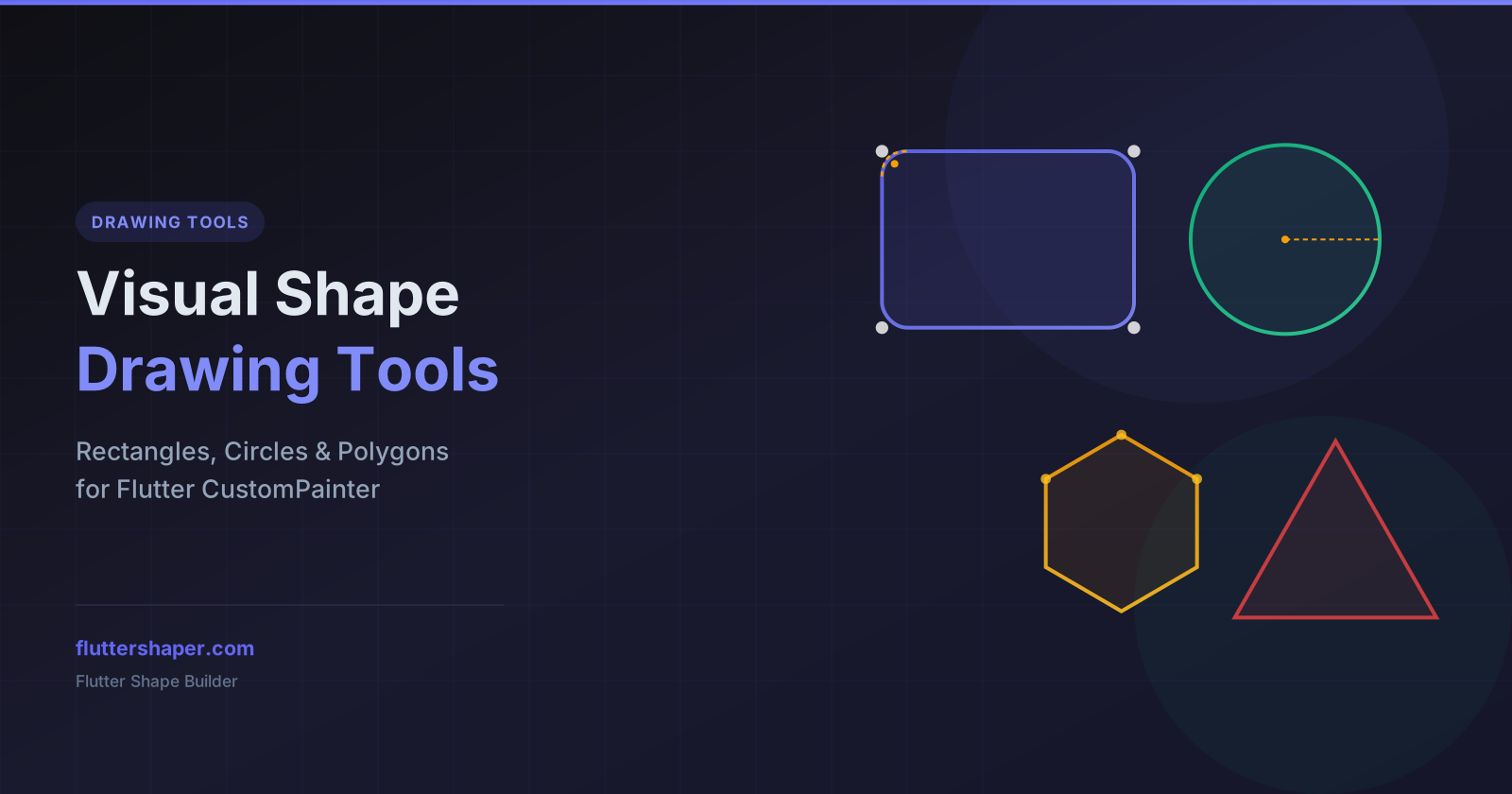
Visual Shape Drawing Tools: Rectangles, Circles & Polygons in Flutter
Building custom UI shapes in Flutter traditionally means writing CustomPainter code by hand — calculating coordinates, tweaking corner radii, and iterating through trial-and-error paint cycles. Flutter Shape Builder, an innovative flutter shape maker, eliminates this friction by providing visual, drag-to-draw flutter shape creation tools that generate production-ready Dart code in real time for your flutter custom painter shape.
In this guide, we explore the three core drawing tools available in Flutter Shape Builder: the Rectangle Tool, the Circle Tool, and the Polygon Tool.
Rectangle Tool
The Rectangle Tool lets you create rectangles and rounded rectangles by simply clicking and dragging on the canvas. It is ideal for building cards, containers, buttons, and any box-based UI element.
Key capabilities
- Parametric width and height — adjust dimensions precisely in the property inspector
- Uniform corner radius — set a single border radius value that applies to all four corners
- Individual corner radii — customize each corner independently for asymmetric rounded shapes
- Drag-to-create interaction — click on the canvas and drag to define the rectangle dimensions visually
After drawing a rectangle, the property panel gives you full control over position (x, y), size (width, height), rotation, fill color, stroke color, stroke width, and opacity. The generated Dart code uses canvas.drawRRect for rounded rectangles and canvas.drawRect for sharp corners.
Example: Rounded rectangle in Flutter
final rrect = RRect.fromRectAndRadius(
  Rect.fromLTWH(50, 50, 200, 120),
  Radius.circular(16),
);
canvas.drawRRect(rrect, paint);
Circle Tool
The Circle Tool creates perfect circles with a single click-and-drag gesture. It is the fastest way to add circular elements like avatars, icons, status indicators, or decorative shapes to your Flutter layout.
Key capabilities
- Parametric radius — set the circle radius exactly in the properties panel
- Fill and stroke styling — apply solid fill colors with HEX + alpha, configure stroke width and color
- Position control — adjust the center point coordinates for pixel-perfect placement
Circles are rendered internally as SVG arc paths. The generated Flutter code uses canvas.drawOval or arc path commands depending on the export format you choose.
Polygon Tool
The Polygon Tool creates regular polygons with a configurable number of sides — from triangles (3 sides) to icosagons (20 sides). This is perfect for badges, star shapes, hexagonal grids, and decorative geometric patterns.
Key capabilities
- Dynamic side count — choose anywhere from 3 to 20 sides
- Click-to-add vertices — alternatively, click individual points to place vertices manually
- Regular polygon generation — automatically generates evenly-spaced vertices
- Close path with Enter — press Enter to finalize and close the polygon shape
Example: Triangle in Flutter
final path = Path();
path.moveTo(150, 50);
path.lineTo(250, 200);
path.lineTo(50, 200);
path.close();
canvas.drawPath(path, paint);
Shared features across all tools
No matter which drawing tool you use, Flutter Shape Builder provides a consistent set of features:
- Transform controls — adjust X, Y position, width, height, rotation, and scale
- Fill and stroke styling — HEX color picker with alpha channel support
- Opacity control — fine-tune the transparency of any shape
- Real-time code preview — see the generated Dart code update instantly as you draw and edit
- Multiple export formats — export as a full runnable Flutter app, StatelessWidget, CustomPainter class, SVG, or JSON
- Undo/Redo history — 50-step snapshot-based history for safe experimentation
Why use visual tools instead of writing CustomPainter by hand?
Writing CustomPainter code manually is powerful but slow. Every coordinate change requires a hot-reload cycle. Flutter Shape Builder gives you instant visual feedback — you see exactly what your shape looks like as you build it, and the generated code is always in sync.
This workflow is especially valuable for:
- Rapid prototyping — try different flutter custom shape variations in seconds
- Complex compositions — combine multiple flutter path shape elements with boolean operations
- Accurate positioning — use the grid and property inspector for pixel-perfect placement
- Learning Flutter paths — see how visual flutter shapes translate to Dart code
Start drawing Flutter shapes visually
Open the flutter shaper editor, pick a tool, and start creating. Your Dart code is generated in real time.
Related articles
Explore Our Projects
Beyond the shape tools — two more things we build and use every day. Free to try, no signup.
Keyboard Arena
Typing practice that plays like a game
Real-time WPM tests, mechanical switch audio, A-Z finger drills and 40+ structured lessons. Race a ghost of your best run instead of grinding random words.
- ✓ Live WPM & Accuracy
- ✓ Mechanical Switch Audio
- ✓ 40+ Guided Lessons
Flutter Log Explorer
Finally, Flutter logs you can read
Zero-config, real-time log capture from the Debug Adapter and Dart VM Service, with smart classification, filters and deduplication — all inside VS Code.
- ✓ Zero-Config Capture
- ✓ Smart Filters & Search
- ✓ Noise-Free Deduplication
Ready to Design Your Own Shapes?
Open the editor and start creating professional Flutter CustomPainter code visually.
Open the Editor