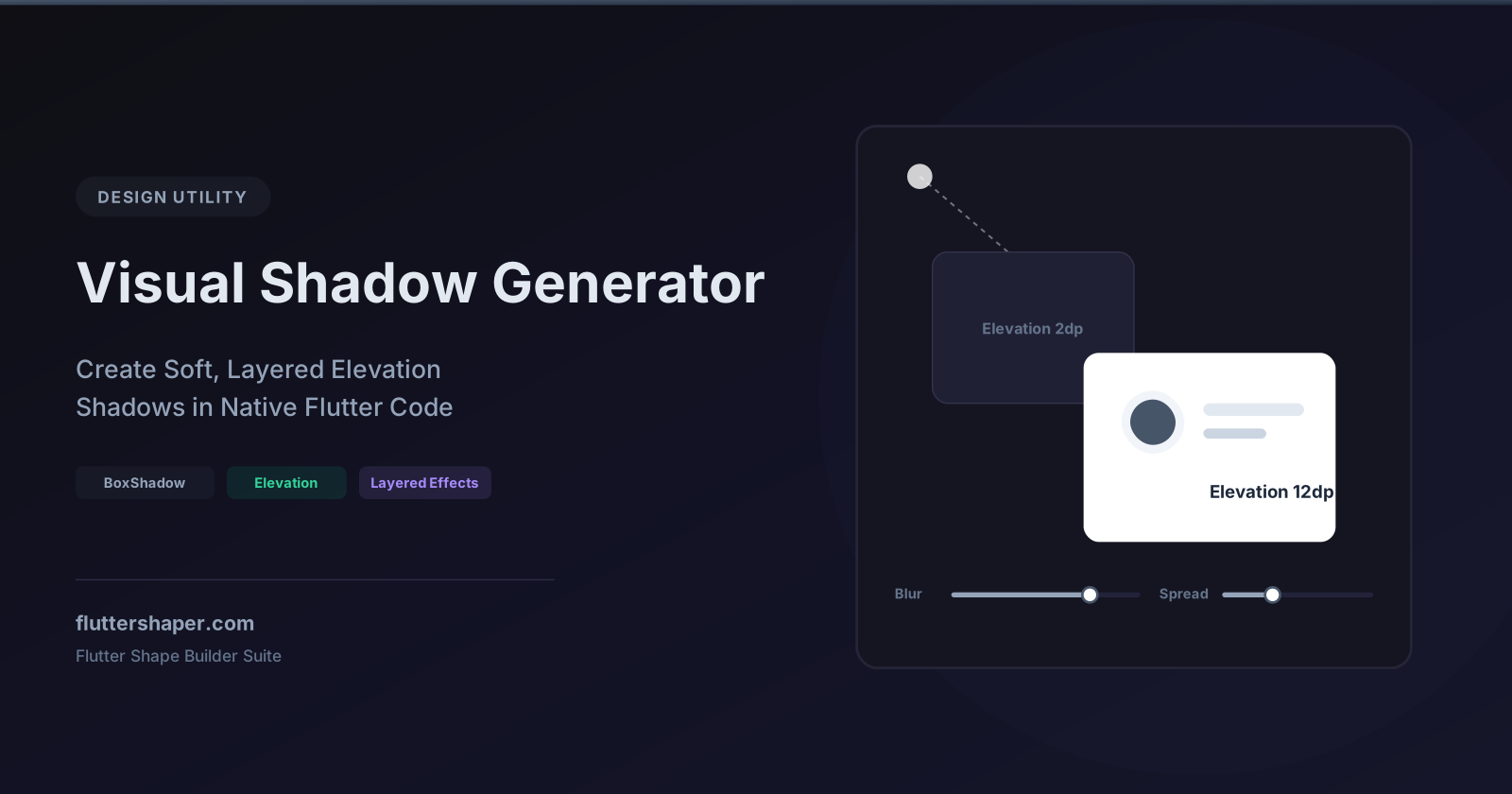
Visual Shadow Generator: Create Soft, Layered Elevation Shadows in Flutter
Shadows are essential for creating visual hierarchy in modern UI design. They represent depth, mimicking physical elevation by making elements appear closer or further from the screen. A card with a soft shadow feels interactable and stands out from a flat background.
But default shadows in mobile frameworks can often look harsh, muddy, or unrealistic. Designing realistic, premium "ambient" shadows requires tweaking multiple parameters: X and Y offsets, blur radius, spread radius, color opacity, and even layering multiple shadows on top of each other.
The Visual Shadow Generator makes it incredibly easy. You can configure and stack shadows visually, customize the background context, and instantly copy clean Dart code for your widget files.
Let's break down how shadows work in Flutter and how to design beautiful elevations.
The Anatomy of a Flutter BoxShadow
In Flutter, shadows on standard widgets (like Container) are configured using a list of BoxShadow objects inside a BoxDecoration.
Here are the key properties you can adjust inside the editor:
const BoxShadow(
  color: Color(0x1F000000), // Hex color with alpha/opacity
  offset: Offset(0.0, 4.0), // X and Y position offsets
  blurRadius: 12.0,         // How fuzzy the shadow edge is
  spreadRadius: -2.0,       // Enlarges or shrinks the shadow shape
)
1. Color and Opacity (color)
Shadow color defines the tint. While black (0xFF000000) is common, pure black shadows can make UIs look dirty.
- Tip: For a softer, more professional look, use a dark tint of your primary brand color (e.g., a dark navy shadow for a blue app) and keep the opacity very low (between
5%and15%).
2. Offsets (offset)
The Offset(dx, dy) class positions the shadow relative to the widget.
dxcontrols the horizontal shift (positive moves right, negative moves left).dycontrols the vertical shift (positive moves down, negative moves up).- Tip: Most realistic light sources come from above, so a positive
dyoffset (e.g.,4.0or8.0) and0dxcreates a natural drop shadow.
3. Blur Radius (blurRadius)
Determines the softness of the shadow. A blur radius of 0 makes the shadow a solid block. The larger the blur radius, the softer and more dispersed the shadow becomes.
4. Spread Radius (spreadRadius)
Determines if the shadow is larger or smaller than the widget casting it. A negative spread (e.g., -3.0) shrinks the shadow inward.
- Tip: To create soft, realistic card shadows, increase the
blurRadiusand set a negativespreadRadius. This keeps the shadow centered and prevents it from spilling out harshly around the corners.
The Secret to High-End UIs: Layered Shadows
In the physical world, shadows are cast in layers—a darker, sharper shadow near the contact point, and a lighter, fuzzy shadow spreading outwards. You can replicate this in Flutter by stacking multiple BoxShadow items inside the boxShadow array.
Our Visual Shadow Generator allows you to add multiple shadow layers, tweaking each layer individually.
Here is the exported code for a premium, realistic layered shadow:
Container(
  decoration: BoxDecoration(
    color: Colors.white,
    borderRadius: BorderRadius.circular(16.0),
    boxShadow: const [
      // Layer 1: Ambient soft outer glow
      BoxShadow(
        color: Color(0x0A000000),
        offset: Offset(0.0, 10.0),
        blurRadius: 20.0,
        spreadRadius: -5.0,
      ),
      // Layer 2: Deeper contact shadow close to the card
      BoxShadow(
        color: Color(0x0F000000),
        offset: Offset(0.0, 4.0),
        blurRadius: 6.0,
        spreadRadius: -2.0,
      ),
    ],
  ),
  child: const SizedBox(width: 200, height: 200),
)
Shadow Casting on Custom Paths
Standard BoxShadow only works on rectangular containers or shapes with basic border radii. If you have drawn a custom wave or vector shape using CustomPainter, you can't use BoxShadow directly.
Instead, you can draw shadows directly onto the Canvas inside your paint method. Flutter provides two main approaches:
1. Canvas drawShadow
A high-performance, native method that draws material-like elevation shadows.
@override
void paint(Canvas canvas, Size size) {
  final path = Path()
    ..moveTo(0, 0)
    ..lineTo(size.width, 0)
    ..quadraticBezierTo(size.width / 2, size.height, 0, size.height)
    ..close();

  // Draws shadow using elevation (depth), shadow color, and transparent-occluder boolean
  canvas.drawShadow(path, const Color(0xFF000000), 6.0, true);

  final paint = Paint()..color = Colors.blue;
  canvas.drawPath(path, paint);
}
2. Painting with a blur mask
If you need colored shadows on a custom path, you can draw the path twice: once with a blur filter to act as the shadow, and once for the actual filled shape.
final shadowPaint = Paint()
  ..color = const Color(0x33000000)
  ..maskFilter = const MaskFilter.blur(BlurStyle.normal, 8.0);

// Draw the shadow shifted downwards
canvas.drawPath(path.shift(const Offset(0.0, 4.0)), shadowPaint);
// Draw original shape
canvas.drawPath(path, mainPaint);
Upgrade Your Shadows Today
Stop settling for default flat styles or heavy black boxes. Use the Visual Shadow Generator to design gorgeous, interactive shadows and elevate your app's layout.
Related articles
Explore Our Projects
Beyond the shape tools — two more things we build and use every day. Free to try, no signup.
Keyboard Arena
Typing practice that plays like a game
Real-time WPM tests, mechanical switch audio, A-Z finger drills and 40+ structured lessons. Race a ghost of your best run instead of grinding random words.
- ✓ Live WPM & Accuracy
- ✓ Mechanical Switch Audio
- ✓ 40+ Guided Lessons
Flutter Log Explorer
Finally, Flutter logs you can read
Zero-config, real-time log capture from the Debug Adapter and Dart VM Service, with smart classification, filters and deduplication — all inside VS Code.
- ✓ Zero-Config Capture
- ✓ Smart Filters & Search
- ✓ Noise-Free Deduplication
Ready to Design Your Own Shapes?
Open the editor and start creating professional Flutter CustomPainter code visually.
Open the Editor