Layer Management: Organize Complex Flutter Shape Compositions
As your Flutter shape designs grow more complex — multiple overlapping paths, layered elements, intricate compositions — keeping everything organized becomes critical. Flutter Shape Builder, an advanced flutter shape maker, includes a full layer management system that gives you precise control over shape ordering, selection, and editing workflows for every flutter custom shape you create.
Understanding layers in Flutter Shape Builder
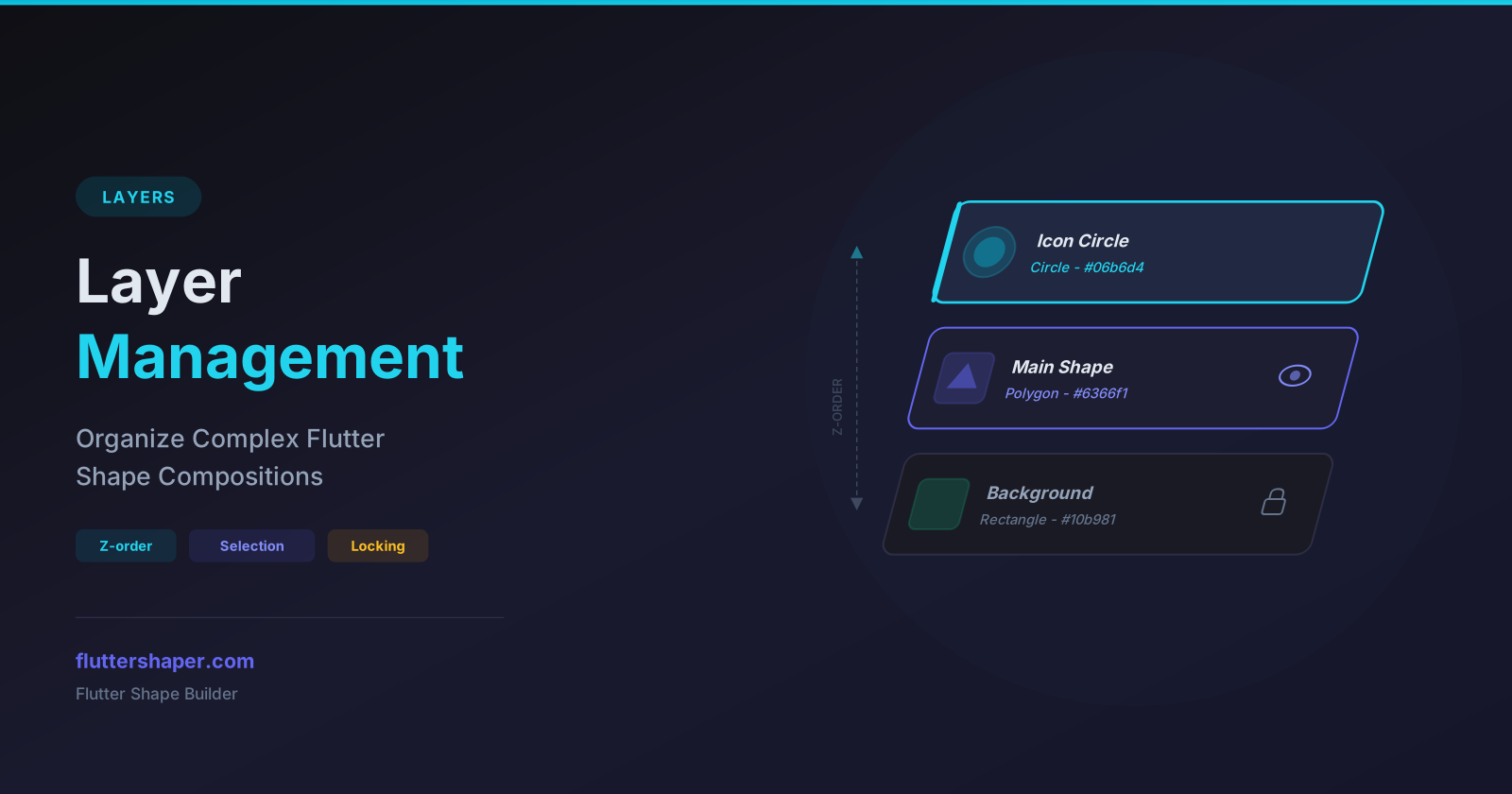
Every flutter shape you create is added as a layer in the layer panel (visible in the sidebar). Layers determine the z-order — which shape appears in front of or behind other shapes. The layer at the top of the list is drawn last (appears on top), just like in Figma, Sketch, or Photoshop.
This z-order directly maps to the order of canvas.drawPath() calls in your generated Flutter code. Shapes drawn later appear on top of shapes drawn earlier.
Z-order management
Reorder your shapes to control which elements overlap which:
- Bring to Front — move the selected shape to the top of the stack (drawn last, appears on top)
- Send to Back — move the selected shape to the bottom of the stack (drawn first, appears behind everything)
- Move Up / Move Down — nudge a shape one position in the layer order
These operations are accessible via the context menu (right-click on a shape) or through the layer panel controls.
Multi-selection
Select multiple shapes at once to apply bulk operations:
- Shift+Click — add or remove shapes from the current selection
- Bulk property editing — change fill color, stroke, or opacity for all selected shapes simultaneously
- Boolean operations — select two or more shapes and apply Unite, Subtract, Intersect, or Exclude
- Group delete — remove all selected shapes at once
Multi-selection is essential for efficient editing of complex designs with many elements.
Shape locking
Lock a shape to prevent accidental edits. When a shape is locked:
- It cannot be moved, resized, or rotated
- It cannot be deleted accidentally
- It remains visible on the canvas but is non-interactive
- It can still be selected in the layer panel for unlocking
Shape locking is invaluable when you have background elements or reference shapes that should stay fixed while you work on foreground details.
Layer renaming
Give your layers meaningful names to keep track of what each shape represents:
- Double-click a layer name in the sidebar to rename it
- Use descriptive names like "Header Background", "Icon Outline", or "Button Shape"
- Named layers make it easier to find and select specific shapes in complex compositions
Context menu
Right-click on any shape on the canvas to access the context menu with quick actions:
- Bring to Front / Send to Back — z-order controls
- Lock / Unlock — toggle shape locking
- Delete — remove the shape
- Duplicate — create a copy of the shape
The context menu provides fast access to the most common layer operations without needing to navigate the sidebar.
How layers affect generated code
The layer order directly determines the order of paint operations in your exported Flutter code. The flutter custom painter shape layers at the bottom of the stack are painted first:
@override
void paint(Canvas canvas, Size size) {
  // Bottom layer - painted first (behind)
  final backgroundPaint = Paint()..color = Color(0xFF1A1A24);
  canvas.drawRect(Rect.fromLTWH(0, 0, 400, 300), backgroundPaint);

  // Middle layer
  final shapePaint = Paint()..color = Color(0xFF6366F1);
  canvas.drawPath(shapePath, shapePaint);

  // Top layer - painted last (in front)
  final overlayPaint = Paint()..color = Color(0x8010B981);
  canvas.drawPath(overlayPath, overlayPaint);
}
This means you get pixel-perfect control over which flutter path shape instances appear in front — the visual order on your canvas matches the code output exactly.
Tips for organizing complex designs
- Name your layers as you create them — it saves time later when your design has 10+ shapes
- Lock background shapes early so you don't accidentally move them while editing foreground elements
- Use z-ordering strategically — place decorative elements behind functional shapes
- Select multiple shapes with Shift+Click before applying boolean operations or bulk style changes
- Use the context menu for quick access to common operations instead of searching the sidebar
Organize your Flutter shapes
Use the layer system to keep complex compositions clean and manageable.
Related articles
Explore Our Projects
Beyond the shape tools — two more things we build and use every day. Free to try, no signup.
Keyboard Arena
Typing practice that plays like a game
Real-time WPM tests, mechanical switch audio, A-Z finger drills and 40+ structured lessons. Race a ghost of your best run instead of grinding random words.
- ✓ Live WPM & Accuracy
- ✓ Mechanical Switch Audio
- ✓ 40+ Guided Lessons
Flutter Log Explorer
Finally, Flutter logs you can read
Zero-config, real-time log capture from the Debug Adapter and Dart VM Service, with smart classification, filters and deduplication — all inside VS Code.
- ✓ Zero-Config Capture
- ✓ Smart Filters & Search
- ✓ Noise-Free Deduplication
Ready to Design Your Own Shapes?
Open the editor and start creating professional Flutter CustomPainter code visually.
Open the Editor