Keyboard Shortcuts & Canvas Controls for Faster Flutter Shape Design
Speed matters when you are iterating on visual designs. Flutter Shape Builder, your essential flutter shape maker, includes a comprehensive set of keyboard shortcuts and canvas controls that let you work faster without reaching for the mouse to formulate the perfect flutter shape. If you have used Figma, Sketch, or any professional design tool, these controls will feel natural.
Tool shortcuts
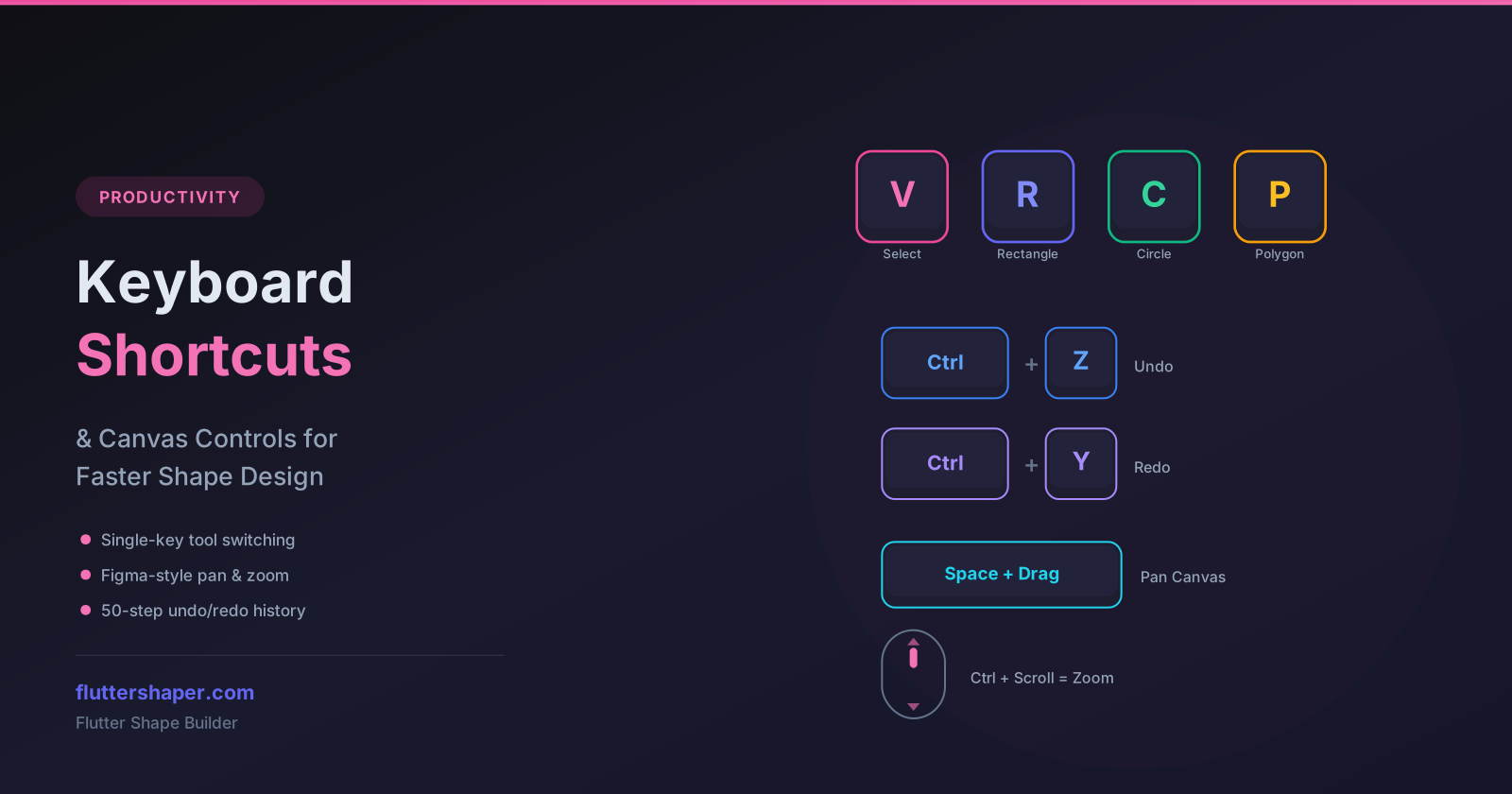
Switch between drawing tools instantly with single-key shortcuts:
| Shortcut | Tool | Description |
|---|---|---|
V |
Select | Select, move, and edit shapes |
R |
Rectangle | Draw rectangles and rounded rectangles |
C |
Circle | Draw perfect circles |
P |
Polygon | Draw regular polygons (3-20 sides) |
Ctrl+P |
Pen | Draw freeform paths with bezier curves |
These shortcuts work globally in the editor — no need to click the toolbar first.
Editing shortcuts
| Shortcut | Action | Description |
|---|---|---|
Delete / Backspace |
Delete | Remove selected shape(s) |
Ctrl+Z |
Undo | Revert the last action (up to 50 steps) |
Ctrl+Y |
Redo | Re-apply an undone action |
Shift+Click |
Multi-select | Add/remove shapes from selection |
Enter |
Close path | Finalize and close polygon or pen path |
Canvas navigation
Every flutter shaper expert knows navigation is key. Flutter Shape Builder uses Figma-style canvas navigation for a familiar, intuitive experience:
Zoom
| Shortcut | Action |
|---|---|
Ctrl+Scroll Up |
Zoom in |
Ctrl+Scroll Down |
Zoom out |
The zoom level is displayed as a percentage in the toolbar. Zooming is centered on the canvas viewport, so you can zoom into specific areas of your design.
Pan
| Shortcut | Action |
|---|---|
Space+Drag |
Pan the canvas |
Hold the spacebar and drag to move around the canvas freely. This works regardless of which tool is active — you do not need to switch to a hand tool.
Grid alignment
Toggle the alignment grid to help position shapes precisely:
- The grid provides visual reference lines across the canvas
- Shapes snap to grid lines for consistent spacing
- Toggle the grid on/off from the toolbar
The grid is purely a visual aid — it does not affect the generated code or export output.
Undo/Redo history
Flutter Shape Builder maintains a 50-step undo/redo history using a snapshot-based system:
- Every significant action (draw, move, resize, delete, color change) creates a history snapshot
Ctrl+Zsteps backward through historyCtrl+Ysteps forward through history- History is cleared when you perform a new action after undoing (standard behavior)
This gives you the freedom to experiment — try different layouts, colors, and shapes knowing you can always go back.
Right-click context menu
Right-click on any shape to access quick actions without leaving the canvas:
- Bring to Front — move shape to top layer
- Send to Back — move shape to bottom layer
- Lock / Unlock — prevent accidental edits
- Delete — remove the shape
- Duplicate — create a copy
Canvas viewport controls
The toolbar displays the current zoom percentage and provides controls for resetting the view:
- Zoom to fit — automatically zoom to show all shapes
- Reset zoom — return to 100% zoom level
- Center canvas — reset pan position to the center
Keyboard shortcut quick reference
Here is the complete shortcut reference in one place:
| Category | Shortcut | Action |
|---|---|---|
| Tools | V |
Select tool |
R |
Rectangle tool | |
C |
Circle tool | |
P |
Polygon tool | |
Ctrl+P |
Pen tool | |
| Editing | Delete |
Delete selected |
Ctrl+Z |
Undo | |
Ctrl+Y |
Redo | |
Shift+Click |
Multi-select | |
Enter |
Close path | |
| Navigation | Ctrl+Scroll |
Zoom in/out |
Space+Drag |
Pan canvas |
Tips for maximum productivity
- Learn the tool shortcuts first — switching between
V,R,C,Pwithout the mouse saves significant time - Use Space+Drag constantly — panning while drawing keeps you focused on the area you are editing
- Ctrl+Z is your friend — experiment freely knowing undo is always one shortcut away
- Toggle the grid when you need precise alignment, disable it when you want creative freedom
- Right-click for context — the context menu is often faster than navigating the sidebar for common operations
Design faster with keyboard shortcuts
Master these shortcuts and your flutter custom painter shape and flutter path shape design workflow becomes significantly faster.
Related articles
Explore Our Projects
Beyond the shape tools — two more things we build and use every day. Free to try, no signup.
Keyboard Arena
Typing practice that plays like a game
Real-time WPM tests, mechanical switch audio, A-Z finger drills and 40+ structured lessons. Race a ghost of your best run instead of grinding random words.
- ✓ Live WPM & Accuracy
- ✓ Mechanical Switch Audio
- ✓ 40+ Guided Lessons
Flutter Log Explorer
Finally, Flutter logs you can read
Zero-config, real-time log capture from the Debug Adapter and Dart VM Service, with smart classification, filters and deduplication — all inside VS Code.
- ✓ Zero-Config Capture
- ✓ Smart Filters & Search
- ✓ Noise-Free Deduplication
Ready to Design Your Own Shapes?
Open the editor and start creating professional Flutter CustomPainter code visually.
Open the Editor