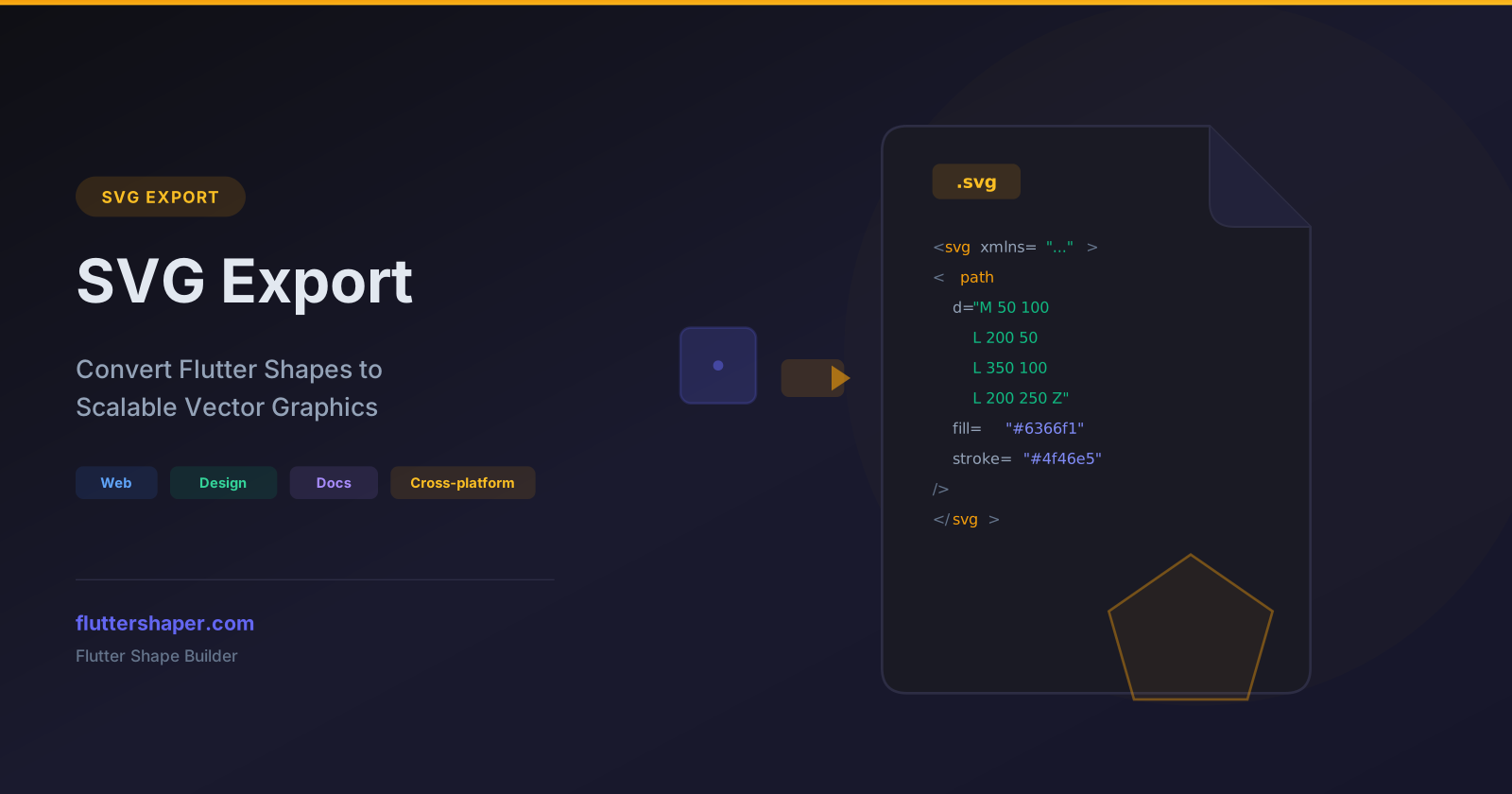
SVG Export: Convert Flutter Shapes to Scalable Vector Graphics
While Flutter Shape Builder is primarily a flutter shape maker and Flutter code generation tool, not every project is Flutter-only. Sometimes you need your flutter shapes as SVG files — for web pages, design handoffs, documentation, or cross-platform workflows.
Flutter Shape Builder includes a built-in SVG export feature that converts your visual designs into standard-compliant SVG markup.
What is SVG export?
SVG (Scalable Vector Graphics) is a universal vector format supported by all modern browsers, design tools (Figma, Sketch, Illustrator), and development frameworks. When you export from Flutter Shape Builder as SVG, you get a .svg file containing:
- All shapes as SVG
<path>elements - Fill colors and stroke styles
- Correct viewBox and sizing
- Standard SVG path commands (M, L, C, Q, Z)
How to export SVG
- Design your shapes on the canvas using any drawing tool
- Open the export panel in the sidebar
- Select SVG as the export format
- Copy or download the generated SVG markup
The SVG output is clean, minified, and ready to use directly in your web project or import into any design tool.
SVG output structure
A typical exported SVG looks like this:
<svg xmlns="http://www.w3.org/2000/svg" viewBox="0 0 800 600">
  <path d="M 50 100 L 200 50 L 350 100 L 200 250 Z"
        fill="#6366f1" stroke="#4f46e5" stroke-width="2" />
  <path d="M 400 200 C 430 130 530 130 560 200 C 590 270 490 300 400 200 Z"
        fill="#10b981" opacity="0.8" />
</svg>
Each shape on your canvas becomes a separate <path> element with its styling attributes preserved.
When to use SVG export
Web development
Embed the SVG directly in HTML, or use it as an <img> source. SVG scales perfectly at any resolution — ideal for responsive web design, retina displays, and high-DPI screens.
Design handoffs
Share the SVG with designers who use Figma, Sketch, or Adobe Illustrator. They can open and edit the paths natively in their tools.
Documentation and diagrams
Use exported SVGs in technical documentation, README files, or presentations. Vector graphics stay sharp at any zoom level.
Cross-platform workflows
If your project includes both Flutter mobile and web components, SVG export lets you reuse the same flutter shapes across both platforms — flutter path shape Dart code for the app, SVG for the website.
Icon and asset creation
Design custom icons or decorative assets visually and export them as SVG for use anywhere in your project.
SVG path commands reference
Flutter Shape Builder generates SVG paths using these commands:
| Command | Description | Example |
|---|---|---|
M x y |
Move to starting point | M 50 100 |
L x y |
Straight line to point | L 200 50 |
C x1 y1 x2 y2 x y |
Cubic bezier curve | C 80 30 180 30 210 100 |
Q x1 y1 x y |
Quadratic bezier curve | Q 150 50 300 100 |
Z |
Close the path | Z |
All coordinates use absolute positioning for maximum compatibility across SVG renderers.
SVG vs. Flutter Dart export
| Feature | SVG Export | Dart Export |
|---|---|---|
| Use case | Web, design tools, docs | Flutter apps |
| Format | XML markup | Dart source code |
| Scalability | Native vector scaling | Size parameter on CustomPaint |
| Editability | Any SVG editor | Any Dart IDE |
| Dependencies | None | Flutter SDK |
Both formats represent the same shapes — choose based on your target platform.
Known limitations
- SVG Arcs: Circle shapes use SVG arc notation which may not have a 1:1 equivalent when converting back to Flutter paths
- Gradients: Not currently supported — all fills use solid colors
- Text: Text elements are not supported; this is a shape-focused tool
Export your shapes as SVG
Design your flutter custom shape visually using a premium flutter shaper and export as standard SVG with one click.
Related articles
Explore Our Projects
Beyond the shape tools — two more things we build and use every day. Free to try, no signup.
Keyboard Arena
Typing practice that plays like a game
Real-time WPM tests, mechanical switch audio, A-Z finger drills and 40+ structured lessons. Race a ghost of your best run instead of grinding random words.
- ✓ Live WPM & Accuracy
- ✓ Mechanical Switch Audio
- ✓ 40+ Guided Lessons
Flutter Log Explorer
Finally, Flutter logs you can read
Zero-config, real-time log capture from the Debug Adapter and Dart VM Service, with smart classification, filters and deduplication — all inside VS Code.
- ✓ Zero-Config Capture
- ✓ Smart Filters & Search
- ✓ Noise-Free Deduplication
Ready to Design Your Own Shapes?
Open the editor and start creating professional Flutter CustomPainter code visually.
Open the Editor